---
title: Setting up a Pulseway PSA Thermometer
description: Our user-guide shows how to add 1-click feedback buttons to Pulseway email templates to track customer satisfaction (CSAT) and NPS
---
[Skip to content](https://support.customerthermometer.com/knowledge/setting-up-a-pulseway-psa-thermometer#main-content)
English
Show submenu for translations
[Contact the Ministry of Magic](https://support.customerthermometer.com/knowledge/kb-tickets/new)
[](https://www.customerthermometer.com/)
- [App link](https://app.customerthermometer.com/)
- [Survey tips & advice](https://www.customerthermometer.com/resources/how-to-embed-customer-thermometer-into-your-business/)
- [System status](https://status.customerthermometer.com/)
Open main navigation
Close main navigation
- [App link](https://app.customerthermometer.com/)
- [Survey tips & advice](https://www.customerthermometer.com/resources/how-to-embed-customer-thermometer-into-your-business/)
- [System status](https://status.customerthermometer.com/)
- English
Show submenu for translations
- [Contact the Ministry of Magic](https://support.customerthermometer.com/knowledge/kb-tickets/new)
How can we help you?
- There are no suggestions because the search field is empty.
1. [Brilliant help, moments away.](https://support.customerthermometer.com/knowledge)
2. [Integrations](https://support.customerthermometer.com/knowledge/integrations)
3. [Pulseway PSA](https://support.customerthermometer.com/knowledge/integrations#pulseway-psa)
April 3, 2026
# Setting up a Pulseway PSA Thermometer
Once logged in to Customer Thermometer head to Thermometers \> Add new Thermometer \> Marketing \> Select Pulseway PSA
This will then open up your Thermometer Builder where you can create your survey and thank you pages.
### **The Question**
This section of the builder is where you can choose the design of your survey including naming your Thermometer, adding your question and selecting your survey icons or uploading your own bespoke icons. The below video will demo all the customization which can be achieved in this section.
### **Connect your survey**
In order for identifiable data about your recipients and senders to display within your reporting area, you first need to capture it. This would be done at the point that the email is sent, by including merge fields/variables from Pulseway PSA within the Thermometer code.
The most common Pulseway PSA variables are shown below for you, however, you can add more if you wish.
Please note, values in custom fields 9 and 10 are used for the writeback.
These variables will capture the corresponding pieces of identifiable data from your Pulseway PSA ticket and present them alongside the recipient's feedback rating within your reporting.
In your *Connect your survey* area, you have additional response options. Here you can choose whether to enable a [lockout](https://support.customerthermometer.com/knowledge/lockout-how-to-limit-responses) and set your [email alert notifications](https://support.customerthermometer.com/knowledge/how-to-set-up-email-alert-notifications).

Separate multiple email addresses with commas.
### **Enter your Pulseway PSA credentials to activate the write-back (optional)**
You will then be directed to the next step to set up your Pulseway PSA writeback.
This will enable your survey responses to be written back into the Pulseway PSA ticket automatically.
Follow the steps to fill out your details for this section.
Click the “*Validate credentials*” button for confirmation.
### **Thank you page**
It’s time to get those Thank you pages looking beautiful!
See below for a step by step walkthrough:
### **Embedding your survey within Pulseway PSA**
Once you've finished designing your Thermometer, the 'Give me my Thermometer' section will provide you with your finished survey to embed into Pulseway PSA. Click the 'Copy to clipboard' button to copy your survey HTML to embed into Pulseway PSA.
Firstly, define your Internal Survey Scores within Pulseway PSA.
This will allow you to create averages & scores for agents & ratings within your Pulseway PSA reporting.
[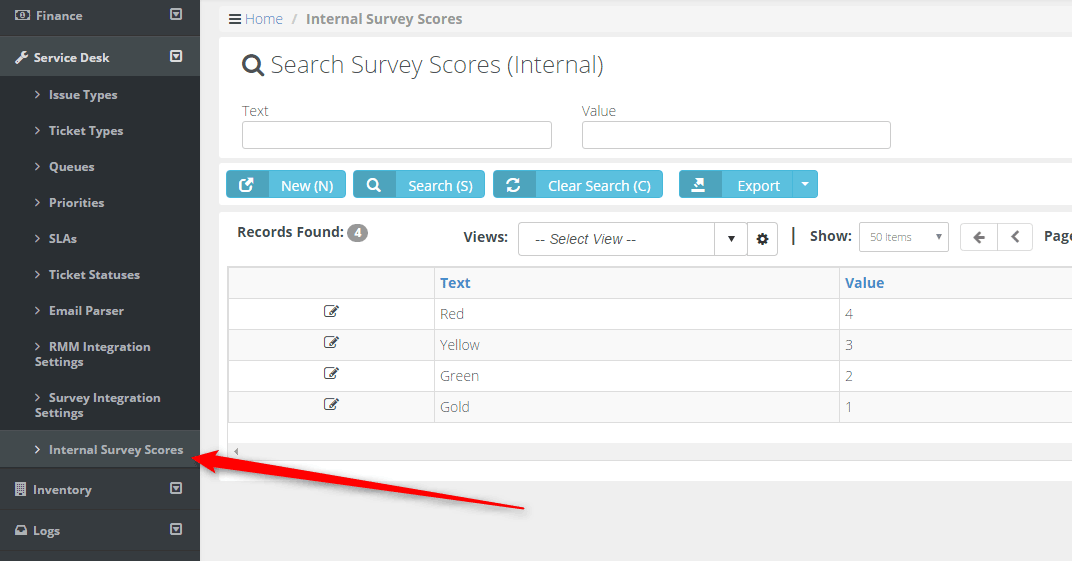](https://www.customerthermometer.com/img/Kaseya-BMS-setup-3.png)Next, create your first survey. This will enable a shortcode to be inserted within email templates.
From your toolbar, within “Settings” \> “Service Desk”, select “Survey Integration Settings”
[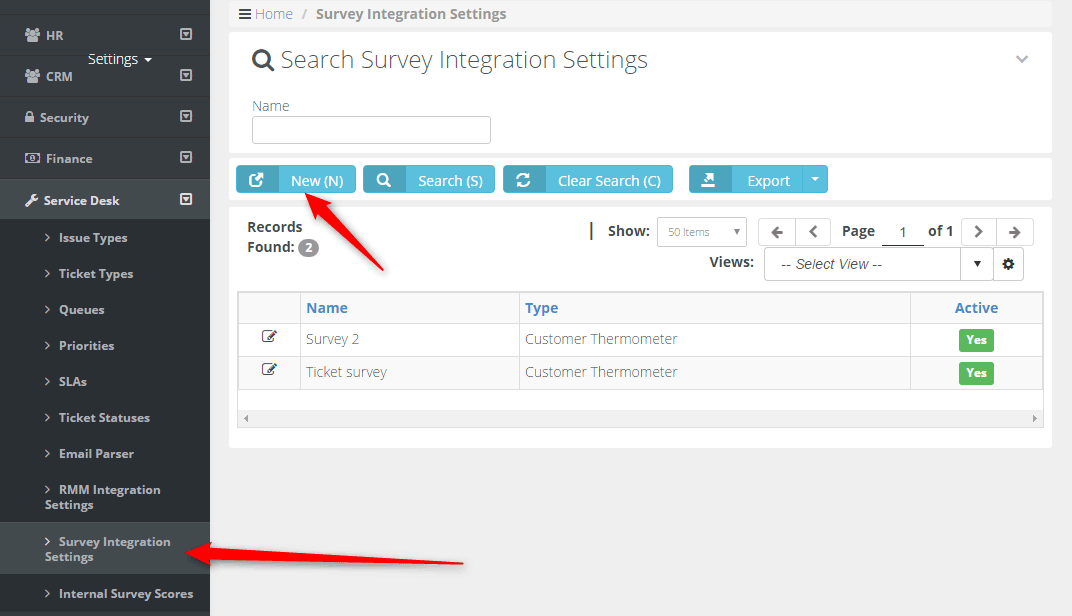](https://www.customerthermometer.com/img/Kaseya-BMS-setup-1.png)
Create a survey name and choose Customer Thermometer as the survey type:
[](https://www.customerthermometer.com/img/Kaseya-BMS-setup-2-1.png)
Next, select the “Survey Score Mappings” tab and map your External Scores to Internal scores as shown:
[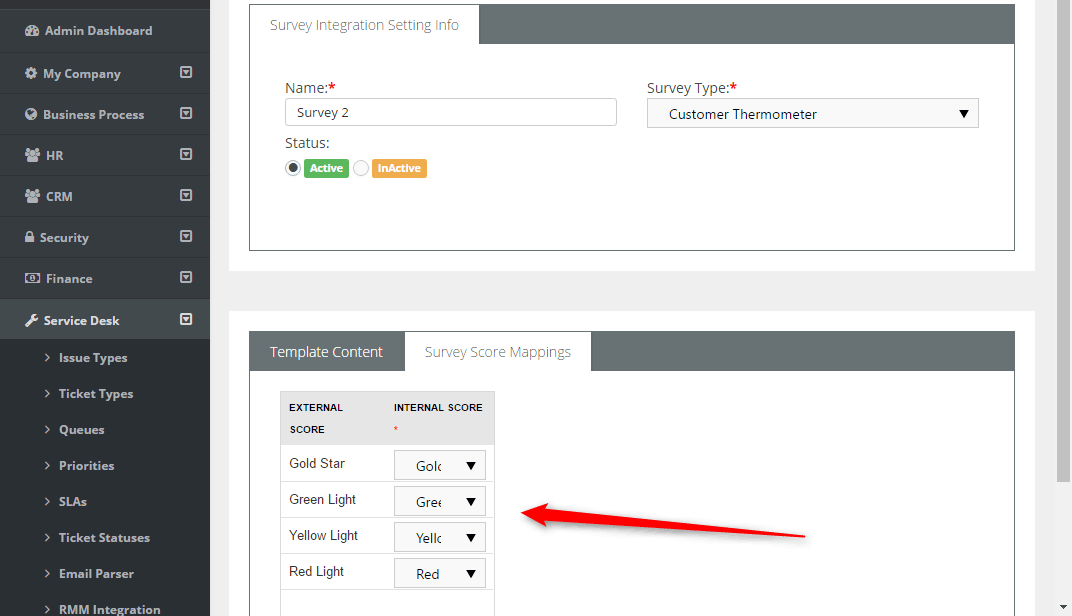](https://www.customerthermometer.com/img/Kaseya-BMS-setup-4.png)
Click SAVE when you’re finished and your survey will now be stored and available across your account.
You are free to add additional, uniquely named, surveys.
### **Add feedback buttons to email notification templates**
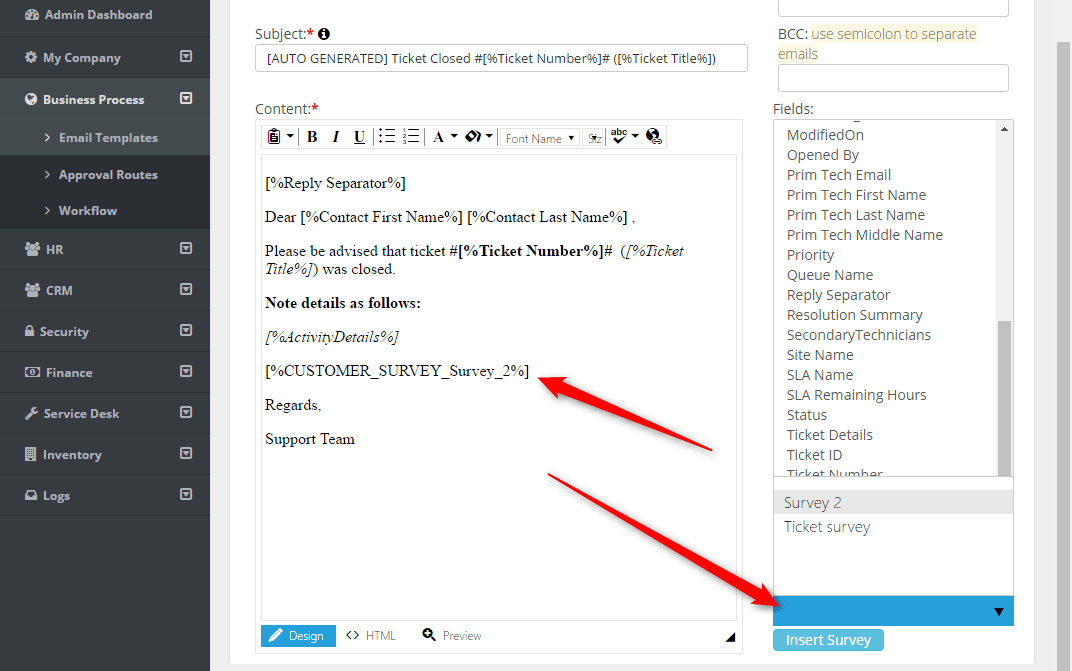
Once your survey(s) are stored, you can add them to an email template.
Customize your Ticket Closure notification and/or your Ticket Updated notification:
[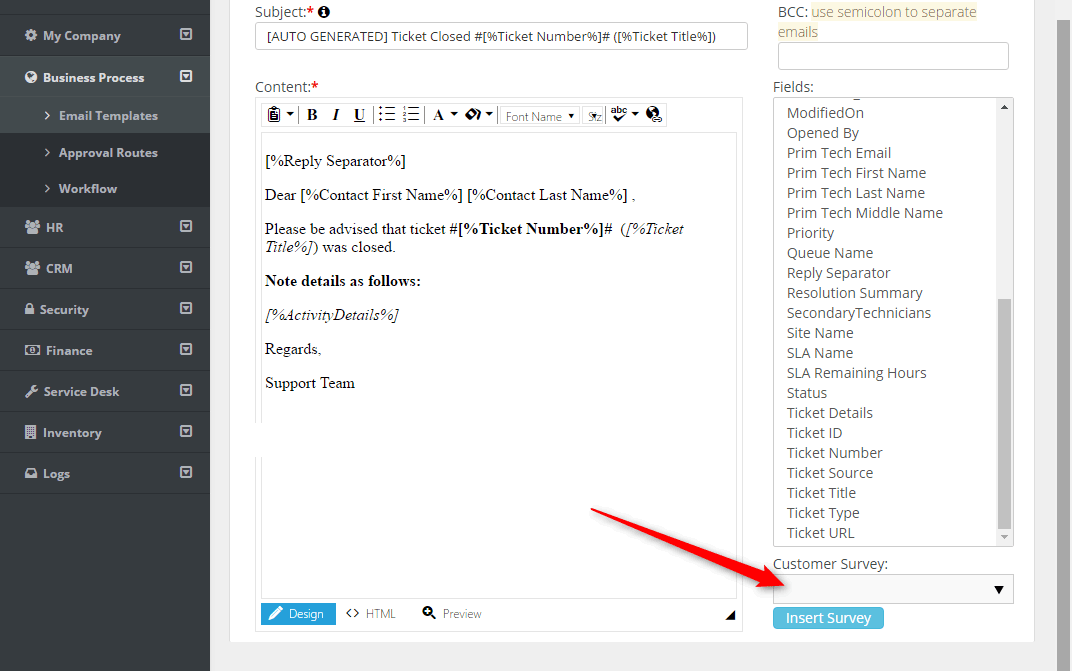](https://www.customerthermometer.com/img/Kaseya-BMS-setup-5.png)
Position your cursor at the relevant point and insert a survey from the dropdown menu:
[](https://www.customerthermometer.com/img/Kaseya-BMS-setup-6.png)
This will add feedback buttons to each notification and allow you to track 1-click feedback, identifiable to that customer, agent and ticket ID.
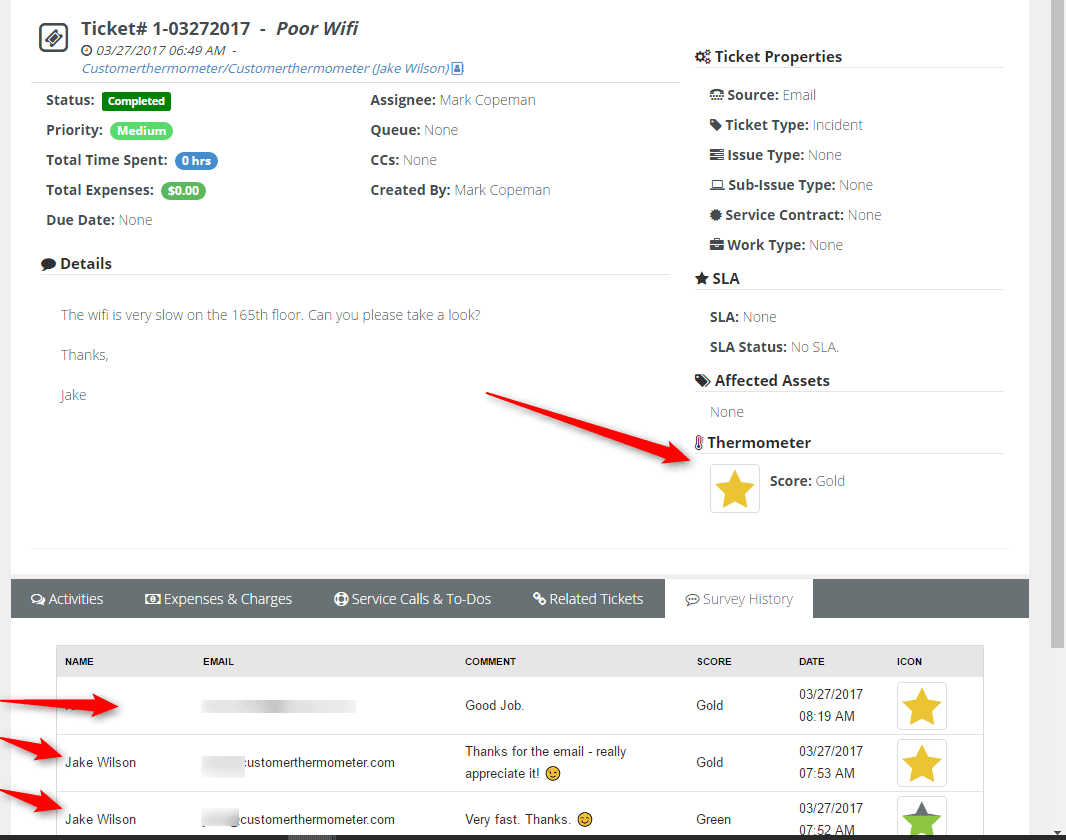
If the writeback is set up, the ratings and comments are then added directly against the Pulseway PSA ticket too.
[](https://www.customerthermometer.com/img/Kaseya-BMS-CSAT-on-ticket.png)
Don't forget you can also set up Pulseway workflows, based on ratings received.
- [Integrations](https://support.customerthermometer.com/knowledge/integrations#main-content)
- [Don't see your integration? Use our Universal Thermometer](https://support.customerthermometer.com/knowledge/integrations#dont-see-your-integration-use-our-universal-thermometer)
- [Accelo](https://support.customerthermometer.com/knowledge/integrations#accelo)
- [ActiveCampaign](https://support.customerthermometer.com/knowledge/integrations#activecampaign)
- [Administrate](https://support.customerthermometer.com/knowledge/integrations#administrate)
- [Appboy](https://support.customerthermometer.com/knowledge/integrations#appboy)
- [Atera](https://support.customerthermometer.com/knowledge/integrations#atera)
- [AutoTask](https://support.customerthermometer.com/knowledge/integrations#autotask)
- [Aweber](https://support.customerthermometer.com/knowledge/integrations#aweber)
- [BetterCloud](https://support.customerthermometer.com/knowledge/integrations#bettercloud)
- [Braze](https://support.customerthermometer.com/knowledge/integrations#braze)
- [BrightGauge](https://support.customerthermometer.com/knowledge/integrations#brightgauge)
- [CodeTwo](https://support.customerthermometer.com/knowledge/integrations#codetwo)
- [ConnectWise](https://support.customerthermometer.com/knowledge/integrations#connectwise)
- [ConstantContact](https://support.customerthermometer.com/knowledge/integrations#constantcontact)
- [Exclaimer](https://support.customerthermometer.com/knowledge/integrations#exclaimer)
- [Freshdesk](https://support.customerthermometer.com/knowledge/integrations#freshdesk)
- [GetResponse](https://support.customerthermometer.com/knowledge/integrations#getresponse)
- [Gorgias](https://support.customerthermometer.com/knowledge/integrations#gorgias)
- [Halo PSA](https://support.customerthermometer.com/knowledge/integrations#halo-psa)
- [HappyFox](https://support.customerthermometer.com/knowledge/integrations#happyfox)
- [Hubspot](https://support.customerthermometer.com/knowledge/integrations#hubspot)
- [Infusionsoft](https://support.customerthermometer.com/knowledge/integrations#infusionsoft)
- [Intercom.io](https://support.customerthermometer.com/knowledge/integrations#intercom-io)
- [Jira](https://support.customerthermometer.com/knowledge/integrations#jira)
- [Kaseya](https://support.customerthermometer.com/knowledge/integrations#kaseya)
- [Kayako](https://support.customerthermometer.com/knowledge/integrations#kayako)
- [Klaviyo](https://support.customerthermometer.com/knowledge/integrations#klaviyo)
- [Kustomer CRM](https://support.customerthermometer.com/knowledge/integrations#kustomer-crm)
- [LanDesk](https://support.customerthermometer.com/knowledge/integrations#landesk)
- [LiveAgent](https://support.customerthermometer.com/knowledge/integrations#liveagent)
- [Mac](https://support.customerthermometer.com/knowledge/integrations#mac)
- [MailChimp](https://support.customerthermometer.com/knowledge/integrations#mailchimp)
- [ManageEngine](https://support.customerthermometer.com/knowledge/integrations#manageengine)
- [Microsoft](https://support.customerthermometer.com/knowledge/integrations#microsoft)
- [N-able](https://support.customerthermometer.com/knowledge/integrations#n-able)
- [NetHelpDesk](https://support.customerthermometer.com/knowledge/integrations#nethelpdesk)
- [NetSuite](https://support.customerthermometer.com/knowledge/integrations#netsuite)
- [Oracle](https://support.customerthermometer.com/knowledge/integrations#oracle)
- [OTRS](https://support.customerthermometer.com/knowledge/integrations#otrs)
- [Pulseway PSA](https://support.customerthermometer.com/knowledge/integrations#pulseway-psa)
- [RegOnline](https://support.customerthermometer.com/knowledge/integrations#regonline)
- [Salesforce](https://support.customerthermometer.com/knowledge/integrations#salesforce)
- [Sendinblue](https://support.customerthermometer.com/knowledge/integrations#sendinblue)
- [ServiceNow](https://support.customerthermometer.com/knowledge/integrations#servicenow)
- [Shopify](https://support.customerthermometer.com/knowledge/integrations#shopify)
- [Sirportly](https://support.customerthermometer.com/knowledge/integrations#sirportly)
- [Slack](https://support.customerthermometer.com/knowledge/integrations#slack)
- [Spiceworks](https://support.customerthermometer.com/knowledge/integrations#spiceworks)
- [Splash](https://support.customerthermometer.com/knowledge/integrations#splash)
- [Syncro MSP](https://support.customerthermometer.com/knowledge/integrations#syncro-msp)
- [Team Support](https://support.customerthermometer.com/knowledge/integrations#team-support)
- [Tigerpaw](https://support.customerthermometer.com/knowledge/integrations#tigerpaw)
- [Vorex](https://support.customerthermometer.com/knowledge/integrations#vorex)
- [Zendesk](https://support.customerthermometer.com/knowledge/integrations#zendesk)
- [Zoho](https://support.customerthermometer.com/knowledge/integrations#zoho)
- [Outlook / Gmail Signatures / Outlook 365 add-in](https://support.customerthermometer.com/knowledge/outlook-gmail-signatures-outlook-365-add-in#main-content)
- [Guides](https://support.customerthermometer.com/knowledge/outlook-gmail-signatures-outlook-365-add-in#guides)
- [Outlook 365 add-in](https://support.customerthermometer.com/knowledge/outlook-gmail-signatures-outlook-365-add-in#outlook-365-add-in)
- [Comparisons](https://support.customerthermometer.com/knowledge/outlook-gmail-signatures-outlook-365-add-in#comparisons)
- [Embedded Thermometers](https://support.customerthermometer.com/knowledge/embedded-thermometers#main-content)
- [Custom fields & data](https://support.customerthermometer.com/knowledge/embedded-thermometers#custom-fields-data)
- [Customization](https://support.customerthermometer.com/knowledge/embedded-thermometers#customization)
- [Email Thermometers](https://support.customerthermometer.com/knowledge/email-thermometers#main-content)
- [Required steps](https://support.customerthermometer.com/knowledge/email-thermometers#required-steps)
- [Custom fields & data](https://support.customerthermometer.com/knowledge/email-thermometers#custom-fields-data)
- [Customization](https://support.customerthermometer.com/knowledge/email-thermometers#customization)
- [Reporting and Alerts](https://support.customerthermometer.com/knowledge/reporting-and-alerts#main-content)
- [Reports](https://support.customerthermometer.com/knowledge/reporting-and-alerts#reports)
- [Response Drivers](https://support.customerthermometer.com/knowledge/reporting-and-alerts#response-drivers)
- [Calculations](https://support.customerthermometer.com/knowledge/reporting-and-alerts#calculations)
- [Alerting](https://support.customerthermometer.com/knowledge/reporting-and-alerts#alerting)
- [Management](https://support.customerthermometer.com/knowledge/reporting-and-alerts#management)
- [Net Promoter Score (NPS)](https://support.customerthermometer.com/knowledge/net-promoter-score-nps)
- [Troubleshooting](https://support.customerthermometer.com/knowledge/troubleshooting#main-content)
- [Reporting Troubleshooting](https://support.customerthermometer.com/knowledge/troubleshooting#reporting-troubleshooting)
- [Duplicate Feedback/Responses Troubleshooting](https://support.customerthermometer.com/knowledge/troubleshooting#duplicate-feedback-responses-troubleshooting)
- [Thermometer Builder Troubleshooting](https://support.customerthermometer.com/knowledge/troubleshooting#thermometer-builder-troubleshooting)
- [Email Thermometer Troubleshooting](https://support.customerthermometer.com/knowledge/troubleshooting#email-thermometer-troubleshooting)
- [Advanced](https://support.customerthermometer.com/knowledge/advanced#main-content)
- [Responses, Duplicates & False Clicks](https://support.customerthermometer.com/knowledge/advanced#responses-duplicates-false-clicks)
- [Outputs & APIs](https://support.customerthermometer.com/knowledge/advanced#outputs-apis)
- [Tablets](https://support.customerthermometer.com/knowledge/advanced#tablets)
- [Customization](https://support.customerthermometer.com/knowledge/advanced#customization)
- [Account Admin](https://support.customerthermometer.com/knowledge/account-admin#main-content)
- [Users & Security](https://support.customerthermometer.com/knowledge/account-admin#users-security)
- [Account Management & Billing](https://support.customerthermometer.com/knowledge/account-admin#account-management-billing)
[](https://www.customerthermometer.com)
Copyright © 2026, Customer Thermometer Technology Ltd - THE customer satisfaction survey