---
title: Microsoft Power BI
description: Easily connect Customer Thermometer to Power BI Desktop with the built-in web data source for seamless survey data import and refresh.
---
[Skip to content](https://support.customerthermometer.com/knowledge/microsoft-power-bi#main-content)
English
Show submenu for translations
[Contact the Ministry of Magic](https://support.customerthermometer.com/knowledge/kb-tickets/new)
[](https://www.customerthermometer.com/)
- [App link](https://app.customerthermometer.com/)
- [Survey tips & advice](https://www.customerthermometer.com/resources/how-to-embed-customer-thermometer-into-your-business/)
- [System status](https://status.customerthermometer.com/)
Open main navigation
Close main navigation
- [App link](https://app.customerthermometer.com/)
- [Survey tips & advice](https://www.customerthermometer.com/resources/how-to-embed-customer-thermometer-into-your-business/)
- [System status](https://status.customerthermometer.com/)
- English
Show submenu for translations
- [Contact the Ministry of Magic](https://support.customerthermometer.com/knowledge/kb-tickets/new)
How can we help you?
- There are no suggestions because the search field is empty.
1. [Brilliant help, moments away.](https://support.customerthermometer.com/knowledge)
2. [Integrations](https://support.customerthermometer.com/knowledge/integrations)
3. [Microsoft](https://support.customerthermometer.com/knowledge/integrations#microsoft)
March 16, 2026
# Microsoft Power BI
Using the Customer Thermometer APIs, it's possible to pull response data straight from Customer Thermometer into Microsoft Power Bi.
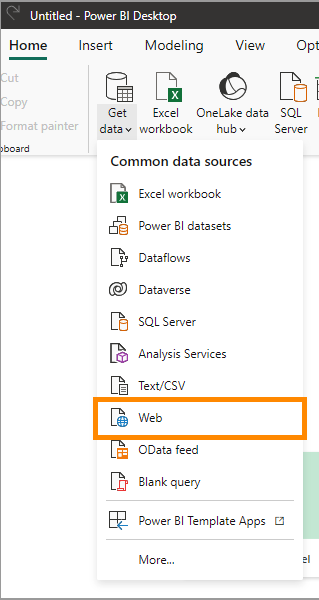
Open Power BI Desktop application and select **Get Data** then click on the **Web** option
You will then be prompted for a URL to add. This can be found within the Automations section within your Customer Thermometer account.

Keep 'Basic' selected, paste your URL in and then click OK
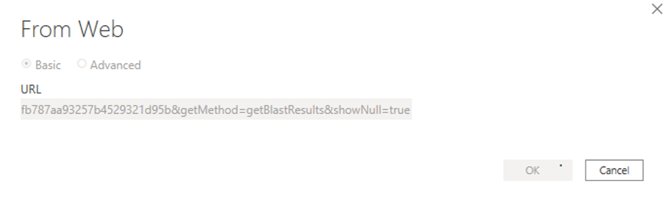This will pull all response data from the Customer Thermometer account into PowerBi.
If you have multiple accounts, you would need to complete this step for each URL from each account.
### **Refresh**
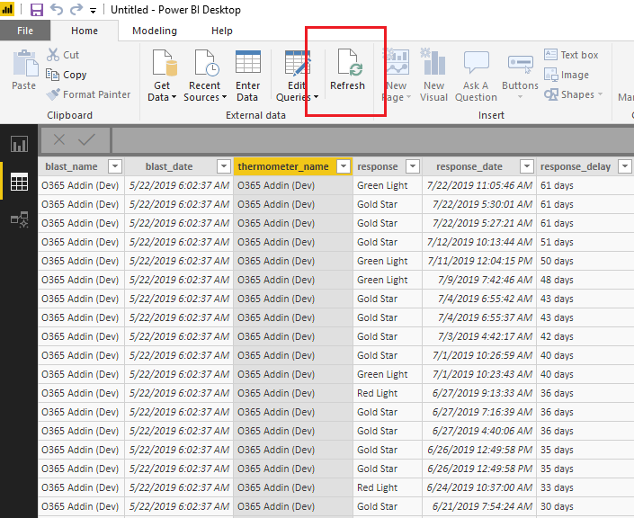
If you need to refresh the table details with the latest data, you can just click on the **Refresh** button from the ribbon within Power BI Desktop.
### **Setting up a scheduled data refresh**
You can set up a scheduled data refresh of Customer Thermometer within your Power Bi by using the on-premise data gateway (personal mode) also known as the Power BI Personal Gateway.
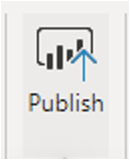
Once the data source has been setup and any data transformations completed, the next step is to Publishing from Power Bi Desktop to Power Bi. This will sync using your Office 365 details.
Within the Workspace that you published the connector to, the new dataset should then be listed:

From the settings of this Dataset (navigating from the three dots on the dataset), you’ll be able to setup the Scheduled refresh.
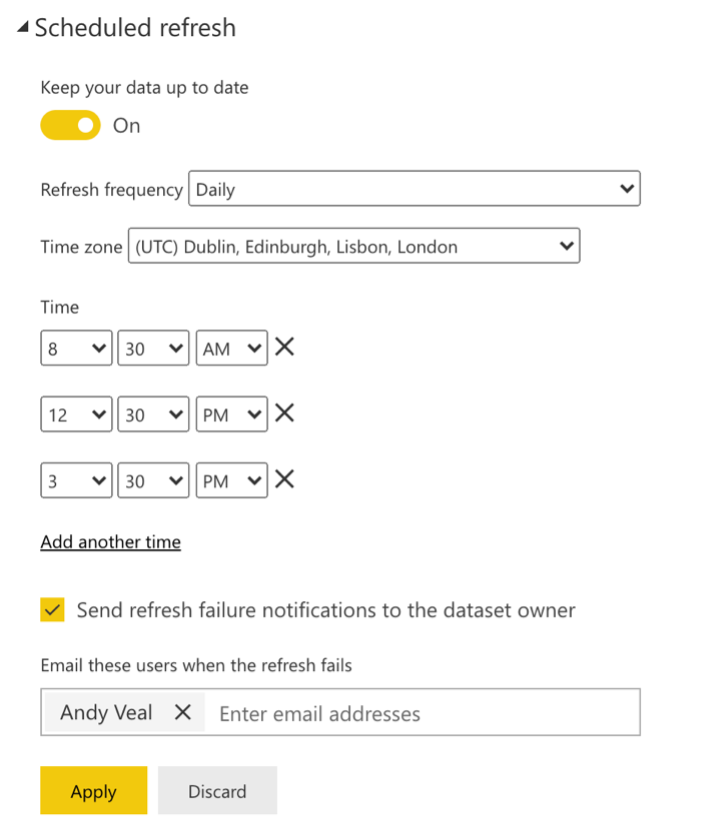
Customer Thermometer recommends setting a daily refresh 30 minutes prior to the start of your day, so the Power Bi dashboards show the latest Customer Thermometer data.
You can set the scheduled refresh to reoccur a number of times throughout a day.
We recommend adding an email address to alert you if the refresh fails.
The authentication of the dataset must be set to Anonymous.
### **Power Bi Connector**
We had previously developed a custom connector for Microsoft Power BI to pull responses straight into Power BI Desktop. From updates to the Power BI product, there is no longer a requirement to use the connector and the same functionality can be replaced as outlined above.
To swap from the Connector to Web data source, create a new query:
1. Go to **Home → New Source → Web**.
2. Enter the URL from the Automations section within your Customer Thermometer account.
3. Configure authentication to be Anonymous when prompted.
4. Rename the new query to match the old one (after deleting or renaming the original), so downstream reports and visuals continue to work.
- [Integrations](https://support.customerthermometer.com/knowledge/integrations#main-content)
- [Don't see your integration? Use our Universal Thermometer](https://support.customerthermometer.com/knowledge/integrations#dont-see-your-integration-use-our-universal-thermometer)
- [Accelo](https://support.customerthermometer.com/knowledge/integrations#accelo)
- [ActiveCampaign](https://support.customerthermometer.com/knowledge/integrations#activecampaign)
- [Administrate](https://support.customerthermometer.com/knowledge/integrations#administrate)
- [Appboy](https://support.customerthermometer.com/knowledge/integrations#appboy)
- [Atera](https://support.customerthermometer.com/knowledge/integrations#atera)
- [AutoTask](https://support.customerthermometer.com/knowledge/integrations#autotask)
- [Aweber](https://support.customerthermometer.com/knowledge/integrations#aweber)
- [BetterCloud](https://support.customerthermometer.com/knowledge/integrations#bettercloud)
- [Braze](https://support.customerthermometer.com/knowledge/integrations#braze)
- [BrightGauge](https://support.customerthermometer.com/knowledge/integrations#brightgauge)
- [CodeTwo](https://support.customerthermometer.com/knowledge/integrations#codetwo)
- [ConnectWise](https://support.customerthermometer.com/knowledge/integrations#connectwise)
- [ConstantContact](https://support.customerthermometer.com/knowledge/integrations#constantcontact)
- [Exclaimer](https://support.customerthermometer.com/knowledge/integrations#exclaimer)
- [Freshdesk](https://support.customerthermometer.com/knowledge/integrations#freshdesk)
- [GetResponse](https://support.customerthermometer.com/knowledge/integrations#getresponse)
- [Gorgias](https://support.customerthermometer.com/knowledge/integrations#gorgias)
- [Halo PSA](https://support.customerthermometer.com/knowledge/integrations#halo-psa)
- [HappyFox](https://support.customerthermometer.com/knowledge/integrations#happyfox)
- [Hubspot](https://support.customerthermometer.com/knowledge/integrations#hubspot)
- [Infusionsoft](https://support.customerthermometer.com/knowledge/integrations#infusionsoft)
- [Intercom.io](https://support.customerthermometer.com/knowledge/integrations#intercom-io)
- [Jira](https://support.customerthermometer.com/knowledge/integrations#jira)
- [Kaseya](https://support.customerthermometer.com/knowledge/integrations#kaseya)
- [Kayako](https://support.customerthermometer.com/knowledge/integrations#kayako)
- [Klaviyo](https://support.customerthermometer.com/knowledge/integrations#klaviyo)
- [Kustomer CRM](https://support.customerthermometer.com/knowledge/integrations#kustomer-crm)
- [LanDesk](https://support.customerthermometer.com/knowledge/integrations#landesk)
- [LiveAgent](https://support.customerthermometer.com/knowledge/integrations#liveagent)
- [Mac](https://support.customerthermometer.com/knowledge/integrations#mac)
- [MailChimp](https://support.customerthermometer.com/knowledge/integrations#mailchimp)
- [ManageEngine](https://support.customerthermometer.com/knowledge/integrations#manageengine)
- [Microsoft](https://support.customerthermometer.com/knowledge/integrations#microsoft)
- [N-able](https://support.customerthermometer.com/knowledge/integrations#n-able)
- [NetHelpDesk](https://support.customerthermometer.com/knowledge/integrations#nethelpdesk)
- [NetSuite](https://support.customerthermometer.com/knowledge/integrations#netsuite)
- [Oracle](https://support.customerthermometer.com/knowledge/integrations#oracle)
- [OTRS](https://support.customerthermometer.com/knowledge/integrations#otrs)
- [Pulseway PSA](https://support.customerthermometer.com/knowledge/integrations#pulseway-psa)
- [RegOnline](https://support.customerthermometer.com/knowledge/integrations#regonline)
- [Salesforce](https://support.customerthermometer.com/knowledge/integrations#salesforce)
- [Sendinblue](https://support.customerthermometer.com/knowledge/integrations#sendinblue)
- [ServiceNow](https://support.customerthermometer.com/knowledge/integrations#servicenow)
- [Shopify](https://support.customerthermometer.com/knowledge/integrations#shopify)
- [Sirportly](https://support.customerthermometer.com/knowledge/integrations#sirportly)
- [Slack](https://support.customerthermometer.com/knowledge/integrations#slack)
- [Spiceworks](https://support.customerthermometer.com/knowledge/integrations#spiceworks)
- [Splash](https://support.customerthermometer.com/knowledge/integrations#splash)
- [Syncro MSP](https://support.customerthermometer.com/knowledge/integrations#syncro-msp)
- [Team Support](https://support.customerthermometer.com/knowledge/integrations#team-support)
- [Tigerpaw](https://support.customerthermometer.com/knowledge/integrations#tigerpaw)
- [Vorex](https://support.customerthermometer.com/knowledge/integrations#vorex)
- [Zendesk](https://support.customerthermometer.com/knowledge/integrations#zendesk)
- [Zoho](https://support.customerthermometer.com/knowledge/integrations#zoho)
- [Outlook / Gmail Signatures / Outlook 365 add-in](https://support.customerthermometer.com/knowledge/outlook-gmail-signatures-outlook-365-add-in#main-content)
- [Guides](https://support.customerthermometer.com/knowledge/outlook-gmail-signatures-outlook-365-add-in#guides)
- [Outlook 365 add-in](https://support.customerthermometer.com/knowledge/outlook-gmail-signatures-outlook-365-add-in#outlook-365-add-in)
- [Comparisons](https://support.customerthermometer.com/knowledge/outlook-gmail-signatures-outlook-365-add-in#comparisons)
- [Embedded Thermometers](https://support.customerthermometer.com/knowledge/embedded-thermometers#main-content)
- [Custom fields & data](https://support.customerthermometer.com/knowledge/embedded-thermometers#custom-fields-data)
- [Customization](https://support.customerthermometer.com/knowledge/embedded-thermometers#customization)
- [Email Thermometers](https://support.customerthermometer.com/knowledge/email-thermometers#main-content)
- [Required steps](https://support.customerthermometer.com/knowledge/email-thermometers#required-steps)
- [Custom fields & data](https://support.customerthermometer.com/knowledge/email-thermometers#custom-fields-data)
- [Customization](https://support.customerthermometer.com/knowledge/email-thermometers#customization)
- [Reporting and Alerts](https://support.customerthermometer.com/knowledge/reporting-and-alerts#main-content)
- [Reports](https://support.customerthermometer.com/knowledge/reporting-and-alerts#reports)
- [Response Drivers](https://support.customerthermometer.com/knowledge/reporting-and-alerts#response-drivers)
- [Calculations](https://support.customerthermometer.com/knowledge/reporting-and-alerts#calculations)
- [Alerting](https://support.customerthermometer.com/knowledge/reporting-and-alerts#alerting)
- [Management](https://support.customerthermometer.com/knowledge/reporting-and-alerts#management)
- [Net Promoter Score (NPS)](https://support.customerthermometer.com/knowledge/net-promoter-score-nps)
- [Troubleshooting](https://support.customerthermometer.com/knowledge/troubleshooting#main-content)
- [Reporting Troubleshooting](https://support.customerthermometer.com/knowledge/troubleshooting#reporting-troubleshooting)
- [Duplicate Feedback/Responses Troubleshooting](https://support.customerthermometer.com/knowledge/troubleshooting#duplicate-feedback-responses-troubleshooting)
- [Thermometer Builder Troubleshooting](https://support.customerthermometer.com/knowledge/troubleshooting#thermometer-builder-troubleshooting)
- [Email Thermometer Troubleshooting](https://support.customerthermometer.com/knowledge/troubleshooting#email-thermometer-troubleshooting)
- [Advanced](https://support.customerthermometer.com/knowledge/advanced#main-content)
- [Responses, Duplicates & False Clicks](https://support.customerthermometer.com/knowledge/advanced#responses-duplicates-false-clicks)
- [Outputs & APIs](https://support.customerthermometer.com/knowledge/advanced#outputs-apis)
- [Tablets](https://support.customerthermometer.com/knowledge/advanced#tablets)
- [Customization](https://support.customerthermometer.com/knowledge/advanced#customization)
- [Account Admin](https://support.customerthermometer.com/knowledge/account-admin#main-content)
- [Users & Security](https://support.customerthermometer.com/knowledge/account-admin#users-security)
- [Account Management & Billing](https://support.customerthermometer.com/knowledge/account-admin#account-management-billing)
[](https://www.customerthermometer.com)
Copyright © 2026, Customer Thermometer Technology Ltd - THE customer satisfaction survey